EC2 Networking / Technical Advisory

conntrack 유휴 타임아웃 기본값 변경 영향 분석

Nitro V6(8세대) 인스턴스에서 Security Group 연결 추적의 TCP established 유휴 타임아웃 기본값이 바뀌었습니다. 무엇이 바뀌었고 무엇을 해야 하는지 정리한 영향 분석 및 대응 가이드입니다.

작성 기준일은 2026-08-03입니다.

적용 대상은 Nitro V6 인스턴스(m8i, r8i 등 8세대)입니다.

변경된 파라미터는 ConnectionTrackingConfiguration.tcpEstablishedTimeout입니다.

주 출처는 AWS Networking & Content Delivery 블로그(2026-05-22)와 EC2 공식 문서입니다.

요약

01사실 관계

이 절에서는 무엇이 얼마나 바뀌었는지를 값으로 확정합니다. 해석과 대응은 뒤 절에서 다루고, 여기서는 사실만 정리합니다.

conntrack(연결 추적)은 인스턴스를 드나드는 커넥션의 상태를 AWS 네트워크 계층이 기억해 두는 기능입니다. ENI(인스턴스에 붙는 가상 네트워크 인터페이스) 단위로 동작합니다.

이번에 변경된 항목은 그 설정 중 하나인 ConnectionTrackingConfiguration.tcpEstablishedTimeout의 기본값입니다. 설정 가능 범위 자체는 그대로입니다. Nitro V6에서 기본값만 350초로 낮아졌습니다.

이 표에서 볼 것은 기본값 두 행으로, Nitro V6만 350초이고 나머지 항목은 기존과 같습니다.

표 1. tcpEstablishedTimeout 사양
항목
설정 범위60초~432,000초(5일)
기본값 - Nitro V6350초 (P6e-GB200 제외)
기본값 - 그 외 전 세대432,000초(5일), P6e-GB200 포함
설정 단위 / 경로ENI 단위. AWS CLI, Launch Template, 콘솔, CloudFormation / Terraform
AWS 권고432,000초보다 작게 설정
  • Nitro V6는 2025년 6월 출시되었으며 m8i / r8i 등 8세대 인스턴스가 해당합니다.
  • UDP는 원래 짧습니다. udpTimeout 기본 30초(최대 60초), udpStreamTimeout 기본 180초(최소 60초)입니다.

그러면 어떤 인스턴스가 영향권일까요? EC2 공식 문서의 Nitro 세대별 목록으로 확인할 수 있습니다. 350초 기본값이 적용되는 것은 아래 표의 Nitro v6 행뿐입니다.

v5 이하는 기존 432,000초(5일)를 유지합니다. 최신 목록은 참고 자료의 Nitro 인스턴스 문서에서 확인하세요.

이 표에서 볼 것은 첫 행(Nitro v6)의 인스턴스 패밀리 목록이며, 여기에 해당하면 350초 기본값이 적용됩니다.

표 2. Nitro 세대별 가상화 인스턴스 패밀리 (EC2 공식 문서, 2026-08-09 조회)
Nitro 세대기본 타임아웃인스턴스 패밀리
Nitro v6 350초 범용 M8a / M8azn / M8gb / M8gn / M8i / M8id / M8i-flex / M8in / M8idn / M8ine / M8ib / M8idb / M9g / M9gd, 컴퓨팅 C8a / C8gb / C8gn / C8i / C8id / C8i-flex / C8in / C8ine / C8ib / C9g / C9gd, 메모리 R8a / R8gb / R8gn / R8i / R8id / R8i-flex / R8in / R8idn / R8ib / R8idb / X8aedz / X8i, 스토리지 I8ge, 가속 G7 / G7e / P6-B200 / P6-B300, HPC Hpc8a
Nitro v5 432,000초(5일) M8g / M8gd, C7gn / C8g / C8gd, R8g / R8gd / X8g, I7ie / I8g, P5en / P6e-GB200 / Trn2 / Trn2u, Hpc7g
Nitro v4 이하 432,000초(5일) M7 / C7 / R7 / M6 / C6 / R6 계열, G6 / P5 / Inf2, M5 / C5 / R5 / T3 / T4g 계열 등 (전체 목록은 공식 문서 참조)
용어 주의 - 커널 conntrack이 아닙니다

여기서 말하는 conntrack은 Nitro 레벨의 Security Group 연결 추적입니다. Security Groups, VPC Flow Logs, 네트워크 미터링을 뒷받침하는 계층입니다. Linux 커널 nf_conntrack_tcp_timeout_established의 기본값도 우연히 432,000초라 혼동하기 쉽지만, 이번 변경은 커널이 아니라 ENI / 하이퍼바이저 계층입니다.

따라서 인스턴스 내부에서 sysctl을 바꿔도 이 타임아웃은 바뀌지 않습니다.

02변경 배경

이 절에서는 AWS가 왜 기본값을 줄였는지 살펴봅니다. 이유를 알면 5일로 되돌리는 대응이 왜 위험한지도 자연스럽게 이해됩니다.

2.1 conntrack allowance 고갈 방지

conntrack 할당량(allowance)은 한 인스턴스가 동시에 추적할 수 있는 커넥션 수의 상한입니다. 이 상한은 사용 가능한 Nitro 리소스에 따라 유한합니다.

기존 5일 기본값에서는 무엇이 문제였을까요? FIN이나 RST를 받지 못한 유휴 / 고아(orphaned) 커넥션이 최대 5일간 추적 테이블에 남습니다. 이것이 누적되어 할당량을 소진하면, 기존 엔트리가 닫히거나 타임아웃되기 전까지 인스턴스가 신규 커넥션을 아예 수립할 수 없습니다.

이때 나타나는 증상은 다음과 같습니다.

  • connection timeout, connection refused
  • 로드밸런서의 504 응답 (백엔드 커넥션 수립 실패)
  • NLB TCP_ELB_Reset_Count 증가

UDP 등 non-TCP 플로우는 타임아웃이 30~180초로 짧아 대규모 누적 가능성이 낮습니다. 누적 리스크는 사실상 TCP established 상태에 집중되어 있었습니다. 이번 변경이 정확히 그 지점을 겨냥합니다.

2.2 AWS 다른 네트워킹 서비스와의 정렬

NLB, NAT Gateway, Gateway Load Balancer는 이미 350초 유휴 타임아웃을 사용합니다. EC2만 5일이면 한쪽은 커넥션이 살아있다고 믿고 다른 쪽은 이미 버린 상태가 됩니다. 이런 상태를 half-open(한쪽만 연결을 유지하는 상태)이라고 부르며, 350초 기본값은 계층 간 이 불일치를 줄입니다.

참고 - 설정 가능 옵션은 2023년 11월부터 존재

ENI 단위로 60초~432,000초(5일) 범위의 TCP established 유휴 타임아웃을 설정하는 기능은 2023년 11월에 이미 도입되었습니다. 모든 Nitro 세대에서 사용 가능합니다. 이번에 새로 생긴 것은 기능이 아니라 V6의 기본값입니다.

03영향 분석

이 절에서는 이 변경이 실제로 어떤 장애로 나타나는지 살펴봅니다. 어떤 워크로드가 노출되는지, 왜 눈치채기 어려운지도 함께 정리합니다.

3.1 장애 양상이 까다로운 이유 - silent drop

silent drop(무통보 폐기)은 연결이 끊겼다는 신호 없이 패킷만 조용히 버려지는 현상입니다. 타임아웃으로 conntrack 엔트리가 삭제될 때 양쪽 어디에도 FIN이나 RST가 전달되지 않기 때문에 발생합니다.

클라이언트 소켓은 ESTABLISHED 상태로 남아 있습니다. 다음 요청을 보내는 순간 패킷이 조용히 버려집니다. 그 결과는 다음과 같습니다.

  • 애플리케이션이 즉시 에러를 받지 않고 자체 타임아웃까지 hang 상태가 됩니다. 요청 지연이 초 단위가 아니라 수십 초 단위로 튑니다.
  • 커넥션 풀이 죽은 커넥션을 "정상"으로 판단해 계속 재사용합니다. 유휴 시간이 긴 새벽 / 주말 직후의 첫 요청들이 집중 실패하는 패턴이 나타납니다.
  • 재현이 어렵습니다. 부하 테스트는 트래픽을 계속 흘리므로 유휴 상태가 발생하지 않아 통과합니다.

3.2 영향받는 워크로드

  • DB 커넥션 풀 - maxIdleTime이 350초보다 크거나 미설정인 경우. 가장 흔한 피해 사례입니다.
  • IoT 텔레메트리 - 간헐 전송 MQTT, 장기 세션
  • 마이크로서비스 간 persistent HTTP / gRPC 커넥션 - keep-alive 재사용 풀
  • 웹소켓 / 롱폴링 - 애플리케이션 하트비트 주기가 350초보다 긴 경우
  • 배치 간격이 긴 워커, 유휴 SSH / 점프박스 세션

3.3 최대 리스크 - 마이그레이션이 "의도치 않게" 일어남

이 변경의 가장 위험한 부분은 적용 시점을 스스로 정하지 못할 수 있다는 점입니다. 노드를 자동으로 골라 주는 도구를 쓰고 있다면 특히 그렇습니다.

주의 - AWS가 블로그에서 명시적으로 경고하는 부분

Karpenter(노드를 자동으로 프로비저닝하는 Kubernetes 도구), 그리고 속성 기반 인스턴스 타입 선택(attribute-based instance type selection, 조건에 맞는 타입을 자동으로 고르는 방식)을 사용하는 EC2 Auto Scaling Group은 최신 인스턴스 세대를 자동으로 선택합니다. 즉 아무 변경도 하지 않았는데 워크로드가 Nitro V6에 올라갑니다. 첫 징후는 노드 리프레시나 스케일링 이벤트 후의 원인 불명 커넥션 실패로 나타납니다.

EKS 환경에서는 특히 다음을 유의해야 합니다.

  • Karpenter NodePool에 인스턴스 세대 제약이 없으면 m8i가 선택될 수 있습니다.
  • VPC CNI 기본 모드에서 파드는 노드 ENI를 공유하므로, 노드 ENI의 타임아웃이 파드에 그대로 적용됩니다.

3.4 계층 간 타임아웃 불일치

타임아웃은 커넥션이 지나는 계층마다 따로 존재합니다. 한 계층만 조정하면 오히려 새로운 함정이 생깁니다.

예를 들어 NLB 유휴 타임아웃을 1,800초로 늘려놨는데 ENI가 350초라면 어떻게 될까요? LB가 커넥션을 유지하는 동안 EC2가 먼저 추적을 버립니다. 클라이언트 입장에서는 잘 되던 커넥션이 갑자기 죽습니다.

ENI 타임아웃만 조정하는 대응은 이런 함정을 만듭니다. 스택 전체의 정렬은 4.4절에서 다룹니다.

04대응 방안

이 절에서는 무엇을 어떤 순서로 적용할지 정리합니다. 우선순위가 핵심이므로 1순위부터 차례로 읽으면 됩니다.

1순위(keepalive)를 적용하면 나머지는 보완 수단이 됩니다. 적용하지 않으면 나머지 수단만으로는 세대 혼재 환경에서 안전을 보장하기 어렵습니다.

4.1 1순위: TCP keepalive (권장)

TCP keepalive는 유휴 커넥션에 주기적으로 작은 확인 패킷(프로브)을 보내는 OS 기능입니다. 커넥션이 어느 인프라 계층에서도 "유휴" 상태에 도달하지 않게 만듭니다.

타임아웃 값 자체를 무의미하게 만들기 때문에 EC2, 로드밸런서, NAT Gateway를 포함한 모든 계층에서 안전합니다. Nitro 세대 혼재 환경에서도 유효합니다.

프로브는 언제 시작해야 할까요? ENI 타임아웃이 350초라면 240초 이전에 시작하도록 설정해 여유를 확보합니다.

참고로 Linux 커널의 keepalive 기본 시작 시간은 7,200초(2시간)입니다. 클라우드 인프라 타임아웃을 막기에는 너무 길어 값 조정이 필수입니다.

/etc/sysctl.conf
net.ipv4.tcp_keepalive_time = 240    # 4분 유휴 후 프로브 시작
net.ipv4.tcp_keepalive_intvl = 60    # 60초 간격으로 프로브
net.ipv4.tcp_keepalive_probes = 3    # 3회 실패 시 커넥션 종료
가장 흔히 놓치는 함정 - SO_KEEPALIVE

위 sysctl(커널 파라미터 설정)은 프로브 간격만 조정합니다. 소켓별로 SO_KEEPALIVE가 켜져 있지 않으면 프로브가 아예 나가지 않습니다. SO_KEEPALIVE는 대부분의 OS에서 소켓 기본값이 off입니다.

sysctl만 넣고 "keepalive 적용 완료"로 판단하면 증상이 그대로 재발합니다. 애플리케이션 / 드라이버 레벨에서 함께 켜야 합니다.

이 표에서 볼 것은 자신이 쓰는 대상의 행이며, keepalive를 소켓 레벨에서 켜는 파라미터를 정리한 것입니다.

표 3. 애플리케이션별 keepalive 설정
대상파라미터
PostgreSQL tcp_keepalives_idle, tcp_keepalives_interval, tcp_keepalives_count
Redis tcp-keepalive (기본 300초로 350초보다 작지만 여유는 크지 않음)
HTTP 클라이언트 / 메시징 라이브러리 대부분 자체 keepalive 옵션 제공, 드라이버별 확인 필요
Windows HKLM\SYSTEM\CurrentControlSet\Services\Tcpip\ParametersKeepAliveTime, KeepAliveInterval

EKS에서의 적용

  • 파드 securityContext.sysctlsnet.ipv4.tcp_keepalive_*를 지정합니다. Kubernetes 1.29부터 safe sysctl로 승격되었으므로, 1.29 미만 클러스터에서는 unsafe sysctl 허용 설정 또는 노드 레벨 적용이 필요합니다.
  • 또는 노드 userData / DaemonSet으로 노드 전체에 적용합니다.

애플리케이션 레벨 하트비트

TCP keepalive는 인프라의 타임아웃을 막아주지만, 원격 애플리케이션이 응답 불능이 된 상황은 TCP 커넥션이 온전해도 감지하지 못합니다. 많은 워크로드에서 keepalive와 하트비트를 함께 운영하는 것이 좋습니다.

4.2 2순위: ENI 타임아웃 명시적 설정

keepalive를 적용할 수 없는 커넥션도 있습니다. 그런 커넥션에서 350초보다 긴 유휴가 필요하면 기본값에 의존하지 말고 명시합니다.

AWS CLI - ModifyNetworkInterfaceAttribute
aws ec2 modify-network-interface-attribute \
  --network-interface-id eni-xxxxxxxx \
  --connection-tracking-specification TcpEstablishedTimeout=3600
  • 설정 경로: AWS CLI, Launch Template, 콘솔, CloudFormation / Terraform
  • 신규 인스턴스에 적용하려면 Launch Template에 넣어야 합니다. Karpenter / ASG 경로도 동일합니다.
  • Karpenter EC2NodeClass에서 직접 노출되지 않을 수 있으므로, 사용 중인 버전의 지원 여부를 확인하고 안 되면 커스텀 Launch Template 또는 keepalive 경로로 가는 편이 확실합니다.

4.3 3순위: 커넥션 라이프사이클 정리

  • 커넥션 풀 maxIdleTime을 350초보다 짧게(권장은 더 짧게) 설정합니다.
  • maxLifetime으로 커넥션을 주기적으로 교체합니다.
  • 사용 전 liveness 검증(validation query / health check)을 수행합니다.
  • 풀 크기를 실제 동시성 요구에 맞게 축소합니다.

원칙: 커넥션은 활성(keepalive 있음) 또는 닫힘 중 하나여야 하며, 무기한 유휴 상태로 두지 않습니다. 장시간 유휴가 예상되면 닫고 필요할 때 다시 엽니다.

4.4 타임아웃 정렬 전략

여러 계층의 타임아웃 값은 방향이 맞아야 안전합니다. AWS 권고는 애플리케이션이 가장 먼저 닫는 구조입니다.

클라이언트에서 VPC 내부로 이어지는 커넥션 경로 다이어그램. Network Load Balancer 1,800초(가장 긴 타임아웃), Elastic Network Interface 350초, Application 60초(가장 짧은 타임아웃) 순으로 안쪽 계층의 타임아웃이 더 짧습니다.
그림 1. 커넥션 경로상의 타임아웃 값. 애플리케이션이 유휴 커넥션을 가장 먼저 닫으므로 종료 신호(FIN)가 ENI와 로드밸런서를 거쳐 바깥으로 전파되고, 어느 인프라 계층도 커넥션을 조용히 버리지 않습니다. 순서가 반대면 silent drop이 발생합니다. (이미지 출처: AWS Networking & Content Delivery 블로그, Best Practices for TCP Connection Management on EC2, 2026-05-22, Figure 1)

아키텍처의 모든 타임아웃 값(애플리케이션, 로드밸런서, NAT Gateway 동작, EC2 ENI)을 문서화하세요. 가장 신뢰할 수 있는 방법은 체인에서 가장 짧은 타임아웃보다 더 짧은 keepalive를 구현하는 것입니다. 그러면 정렬 문제 자체를 회피할 수 있습니다.

역방향 케이스 - 오히려 낮춰야 하는 경우

공개 API, DB 서버처럼 클라이언트 동작을 통제할 수 없는 서비스라면 방향이 반대입니다. ENI 타임아웃을 오히려 낮게(350초 기본값 또는 그 이하) 두는 것이 맞습니다. 유휴 클라이언트 커넥션이 누적되어 allowance를 소진하는 쪽이 더 위험하기 때문입니다.

05탐지 및 모니터링

이 절에서는 지금 우리 환경이 이 문제를 겪고 있는지 확인하는 방법을 다룹니다. 별도 도구 없이 인스턴스 안에서 바로 확인할 수 있습니다.

ENA(EC2의 네트워크 드라이버)가 노출하는 conntrack 메트릭으로 상태를 직접 확인할 수 있습니다.

인스턴스 내부에서 실행
ethtool -S eth0 | grep conntrack

이 표에서 볼 것은 두 메트릭의 해석 열이며, 값의 급격한 변화가 곧 신호입니다.

표 4. conntrack 관련 ENA 메트릭
메트릭의미해석
conntrack_allowance_available 남은 추적 용량 갑자기 크게 뛰면 다수 커넥션이 동시에 정리된 것으로, 타임아웃 이벤트 신호입니다.
conntrack_allowance_exceeded 할당량 초과로 드롭된 패킷 수 스파이크는 신규 커넥션 실패가 발생 중이라는 뜻입니다.
  • 두 메트릭 모두 2023년 1월 이후 ENA 드라이버가 필요합니다.
  • 프로덕션에서는 CloudWatch 통합 에이전트로 게시해 그래프와 알람을 구성하세요.
  • 함께 볼 지표: 애플리케이션 커넥션 에러 / 재시도 횟수 / 커넥션 풀 사용률 / 지연, NLB TCP_ELB_Reset_Count

06상황별 조치 요약

이 절은 운영 상황별로 필요한 조치를 표 하나로 정리합니다. 자신의 상황에 해당하는 행만 읽으면 됩니다.

이 표에서 볼 것은 왼쪽의 상황 열이며, 해당하는 행의 오른쪽 조치를 그대로 따르면 됩니다.

표 5. 운영 상황별 필요 조치
상황필요 조치
Nitro V5 이하만 운영 즉시 조치 불필요. V5는 기존 타임아웃 동작을 유지합니다. 다만 지금 keepalive를 넣어두면 향후 이관이 무사고가 됩니다.
V5 / V6 혼재 양쪽에 명시적 타임아웃을 설정하거나, keepalive를 적용해 기본값을 무관하게 만듭니다. 별도 노드풀 분리는 불필요합니다.
V6로 이관 예정 / 자동 이관 가능 ① keepalive(프로브 240초 이하) 구현 → ② keepalive를 적용할 수 없는 커넥션은 Launch Template에 명시적 ENI 타임아웃 → ③ 스택 전체(앱 / ENI / LB / NAT GW) 정렬 검증 → ④ 카나리 / 블루그린으로 점진 배포하며 커넥션 에러율 모니터링

07검증 시 주의사항

이 절에서는 테스트가 이 문제를 왜 놓치는지 설명합니다. 통과한 테스트가 안전을 보장하지 않는 이유이기도 합니다.

지속 부하 테스트만으로는 재현되지 않습니다. 현실적인 유휴 구간을 포함한 테스트가 필요합니다. 다음은 수 시간 운영 후에만 드러나는 문제들입니다.

  • 커넥션 풀 동작이 시간이 지나며 드리프트합니다.
  • 커넥션 10개에서 동작하던 재시도 / 백오프 로직이 10,000개에서 실패합니다.
  • 리소스(파일 디스크립터, 메모리, conntrack 엔트리)가 임계치를 넘을 때까지 축적됩니다.
  • 계층 간 타임아웃 상호작용은 지속적인 부하 하에서만 표면화됩니다.

새 인스턴스 세대는 항상 대표성 있는 워크로드로 사전 테스트하세요. 카나리 또는 블루 / 그린으로 점진 배포해 문제 시 빠르게 롤백할 수 있게 하세요.

08결론

이 절에서는 계층별 최종 권고를 정리합니다. 한 문장으로 요약하면, keepalive를 제대로 켠 애플리케이션은 Nitro 세대가 무엇이든 이번 변경의 영향을 받지 않습니다.

350초 기본값 변경은 conntrack 고갈이라는 더 큰 장애를 막기 위한 합리적 조정입니다. keepalive를 제대로(SO_KEEPALIVE 포함) 적용하면 Nitro 세대와 무관하게 해결됩니다. ENI 타임아웃을 5일로 되돌리는 대응은 원래의 allowance 고갈 문제를 다시 불러오므로 권장하지 않습니다.

복원력 있는 구성은 세 계층에서 동작합니다.

  1. 애플리케이션 계층 - TCP keepalive 또는 애플리케이션 하트비트를 구현합니다.
  2. 인프라 계층 - 워크로드에 맞는 ENI 타임아웃을 설정하고, 상위 LB / NAT Gateway와의 정렬을 검증합니다.
  3. 모니터링 계층 - conntrack_allowance_available, conntrack_allowance_exceeded와 커넥션 에러율을 함께 추적합니다.

이렇게 구성된 애플리케이션은 어떤 Nitro 세대, 어떤 인프라 계층에서도 동일하게 안정적으로 동작합니다.

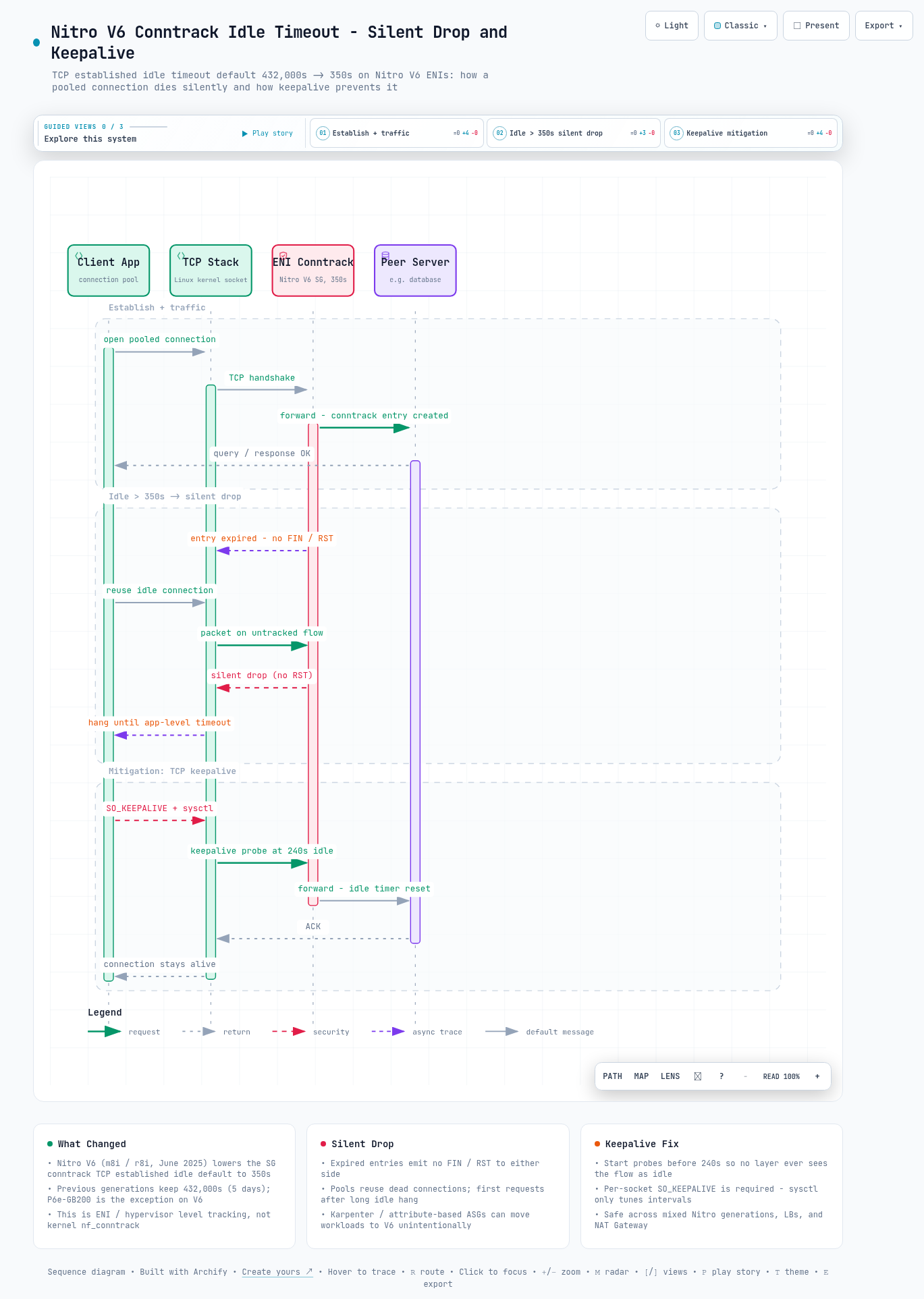
인터랙티브 아키텍처 맵 전체 이미지 - 시스템 구성 요소와 흐름을 한 화면으로 보여줍니다
그림 2. 인터랙티브 아키텍처 맵 전체 보기. 이미지를 클릭하면 노드 탐색, 경로 추적, 다크/라이트 테마를 지원하는 인터랙티브 버전 ↗이 열립니다.

--참고 자료

본문에서 인용한 수치와 판단의 근거가 되는 문서들입니다.

핵심 출처

AWS 공식 문서

관련 블로그

외부 자료

EC2 Networking / Technical Advisory

Impact Analysis: conntrack Idle Timeout Default Change

The default TCP established idle timeout of Security Group connection tracking changed on Nitro V6 (8th-generation) instances. This is an impact analysis and response guide covering what changed and what to do about it.

This document is written as of 2026-08-03.

It applies to Nitro V6 instances (8th generation, such as m8i and r8i).

The changed parameter is ConnectionTrackingConfiguration.tcpEstablishedTimeout.

Primary sources are the AWS Networking & Content Delivery blog (2026-05-22) and the official EC2 documentation.

TL;DR

01Facts

This section pins down what changed and by how much, in concrete values. Interpretation and responses come in later sections; here we stick to the facts.

conntrack (connection tracking) is how the AWS network layer remembers the state of connections going in and out of an instance. It operates per ENI, the virtual network interface attached to an instance.

What changed is the default value of one of those settings, ConnectionTrackingConfiguration.tcpEstablishedTimeout. The configurable range itself did not change. On Nitro V6, only the default was lowered to 350 seconds.

In this table, focus on the two default rows: only Nitro V6 is 350 seconds, and every other item is unchanged.

Table 1. tcpEstablishedTimeout specification
ItemValue
Configurable range60 seconds to 432,000 seconds (5 days)
Default - Nitro V6350 seconds (except P6e-GB200)
Default - all other generations432,000 seconds (5 days), including P6e-GB200
Scope / configuration pathPer ENI. AWS CLI, Launch Template, console, CloudFormation / Terraform
AWS recommendationSet lower than 432,000 seconds
  • Nitro V6 launched in June 2025 and covers 8th-generation instances such as m8i / r8i.
  • UDP has always been short: udpTimeout defaults to 30 seconds (max 60), and udpStreamTimeout defaults to 180 seconds (min 60).

So is your instance in scope? You can check using the per-generation Nitro list in the official EC2 documentation. The 350-second default applies only to the Nitro v6 row in the table below.

v5 and earlier keep the existing 432,000 seconds (5 days). See the Nitro instances document in References for the latest list.

In this table, look at the instance-family list in the first row (Nitro v6); if your family is there, the 350-second default applies.

Table 2. Virtualized instance families by Nitro generation (official EC2 documentation, retrieved 2026-08-09)
Nitro generationDefault timeoutInstance families
Nitro v6 350 seconds General purpose M8a / M8azn / M8gb / M8gn / M8i / M8id / M8i-flex / M8in / M8idn / M8ine / M8ib / M8idb / M9g / M9gd, Compute C8a / C8gb / C8gn / C8i / C8id / C8i-flex / C8in / C8ine / C8ib / C9g / C9gd, Memory R8a / R8gb / R8gn / R8i / R8id / R8i-flex / R8in / R8idn / R8ib / R8idb / X8aedz / X8i, Storage I8ge, Accelerated G7 / G7e / P6-B200 / P6-B300, HPC Hpc8a
Nitro v5 432,000 seconds (5 days) M8g / M8gd, C7gn / C8g / C8gd, R8g / R8gd / X8g, I7ie / I8g, P5en / P6e-GB200 / Trn2 / Trn2u, Hpc7g
Nitro v4 and earlier 432,000 seconds (5 days) M7 / C7 / R7 / M6 / C6 / R6 families, G6 / P5 / Inf2, M5 / C5 / R5 / T3 / T4g families, etc. (see the official documentation for the full list)
Terminology - this is not kernel conntrack

The conntrack discussed here is Nitro-level Security Group connection tracking. It is the layer that underpins Security Groups, VPC Flow Logs, and network metering. The Linux kernel's nf_conntrack_tcp_timeout_established also happens to default to 432,000 seconds, which makes it easy to confuse, but this change is at the ENI / hypervisor layer, not the kernel.

Therefore, changing sysctl inside the instance does not change this timeout.

02Background of the Change

This section looks at why AWS lowered the default. Knowing the reason also makes it clear why reverting to 5 days is risky.

2.1 Preventing conntrack allowance exhaustion

The conntrack allowance is the ceiling on how many connections one instance can track at the same time. It is finite, determined by available Nitro resources.

What was the problem with the previous 5-day default? Idle or orphaned connections that never received a FIN or RST could remain in the tracking table for up to 5 days. If these accumulate and exhaust the allowance, the instance cannot establish any new connections until existing entries close or time out.

The symptoms at that point look like this.

  • connection timeout, connection refused
  • 504 responses from load balancers (backend connection establishment failures)
  • Increase in NLB TCP_ELB_Reset_Count

Non-TCP flows such as UDP have short timeouts (30-180 seconds), so large-scale accumulation is unlikely. The accumulation risk was effectively concentrated in the TCP established state. This change targets exactly that point.

2.2 Alignment with other AWS networking services

NLB, NAT Gateway, and Gateway Load Balancer already use a 350-second idle timeout. If EC2 alone keeps 5 days, one side believes the connection is alive while the other has already discarded it. That state is called half-open (only one side still holds the connection), and the 350-second default reduces this mismatch across layers.

Note - the configurable option has existed since November 2023

The ability to set a per-ENI TCP established idle timeout in the 60-second to 432,000-second (5-day) range was introduced back in November 2023. It is available on all Nitro generations. What is new this time is not the capability but the V6 default.

03Impact Analysis

This section looks at how the change shows up as real failures. It also covers which workloads are exposed and why the problem is easy to miss.

3.1 Why the failure mode is tricky - silent drop

A silent drop means packets are discarded with no signal that the connection is gone. It happens because no FIN or RST is delivered to either side when a conntrack entry is deleted by the timeout.

The client socket remains in ESTABLISHED. The moment it sends the next request, the packet is silently discarded. The consequences are as follows.

  • The application does not receive an immediate error and hangs until its own timeout. Request latency jumps to tens of seconds, not single seconds.
  • Connection pools judge dead connections as "healthy" and keep reusing them. The pattern is concentrated failures on the first requests right after long idle periods - early mornings or just after the weekend.
  • It is hard to reproduce. Load tests keep traffic flowing, so no idle state occurs and the tests pass.

3.2 Affected workloads

  • DB connection pools - when maxIdleTime is greater than 350 seconds or unset. The most common casualty.
  • IoT telemetry - intermittent MQTT, long-lived sessions
  • Persistent HTTP / gRPC connections between microservices - keep-alive reuse pools
  • WebSocket / long polling - when the application heartbeat interval exceeds 350 seconds
  • Workers with long batch intervals, idle SSH / jump-box sessions

3.3 The biggest risk - migration happens "unintentionally"

The most dangerous part of this change is that you may not get to choose when it applies to you. That is especially true if you use tools that pick nodes automatically.

Warning - what AWS explicitly calls out in the blog

Karpenter (a Kubernetes tool that provisions nodes automatically), and EC2 Auto Scaling Groups using attribute-based instance type selection (picking any type that matches given attributes), automatically choose the latest instance generation. In other words, workloads land on Nitro V6 without any change on your side. The first sign is unexplained connection failures after a node refresh or scaling event.

In EKS environments, pay particular attention to the following.

  • If a Karpenter NodePool has no instance-generation constraint, m8i can be selected.
  • In the VPC CNI default mode, pods share the node's ENIs, so the node ENI's timeout applies to pods as-is.

3.4 Timeout mismatch across layers

Timeouts exist separately at every layer a connection passes through. Adjusting just one layer can create a brand-new trap.

For example, what happens if you raised the NLB idle timeout to 1,800 seconds but the ENI sits at 350 seconds? EC2 drops the tracking first while the LB keeps the connection alive. From the client's perspective, a connection that used to work suddenly dies.

Responding by adjusting only the ENI timeout creates exactly this trap. Aligning the whole stack is covered in section 4.4.

04Mitigations

This section lays out what to apply and in what order. Priority is the key, so read from priority 1 down.

If you apply priority 1 (keepalive), the rest become supplementary. Without it, the remaining measures alone cannot guarantee safety in a mixed-generation environment.

4.1 Priority 1: TCP keepalive (recommended)

TCP keepalive is an OS feature that sends small periodic check packets (probes) over idle connections. It ensures the connection never reaches an "idle" state at any infrastructure layer.

Because it makes the timeout value itself irrelevant, it is safe at every layer, including EC2, load balancers, and NAT Gateway. It remains valid in mixed Nitro-generation environments.

When should probes start? If the ENI timeout is 350 seconds, configure probes to start before 240 seconds to leave headroom.

Note that the Linux kernel's default keepalive start time is 7,200 seconds (2 hours). That is far too long to beat cloud infrastructure timeouts, so tuning the values is mandatory.

/etc/sysctl.conf
net.ipv4.tcp_keepalive_time = 240    # start probes after 4 minutes of idle
net.ipv4.tcp_keepalive_intvl = 60    # probe every 60 seconds
net.ipv4.tcp_keepalive_probes = 3    # close the connection after 3 failed probes
The most commonly missed trap - SO_KEEPALIVE

The sysctl above (kernel parameter settings) only tunes the probe intervals. If SO_KEEPALIVE is not enabled per socket, no probes are sent at all. SO_KEEPALIVE defaults to off on most operating systems.

If you add only the sysctl and declare "keepalive done", the symptoms will recur unchanged. It must also be enabled at the application / driver level.

In this table, find the row for what you run; it lists the parameters that enable keepalive at the socket level.

Table 3. Keepalive settings by application
TargetParameters
PostgreSQL tcp_keepalives_idle, tcp_keepalives_interval, tcp_keepalives_count
Redis tcp-keepalive (defaults to 300 seconds - below 350, but the margin is small)
HTTP clients / messaging libraries Most provide their own keepalive options; check per driver
Windows KeepAliveTime and KeepAliveInterval under HKLM\SYSTEM\CurrentControlSet\Services\Tcpip\Parameters

Applying it on EKS

  • Specify net.ipv4.tcp_keepalive_* via the pod's securityContext.sysctls. These were promoted to safe sysctls in Kubernetes 1.29, so clusters below 1.29 need the unsafe-sysctl allowlist or node-level application.
  • Alternatively, apply node-wide via node userData / a DaemonSet.

Application-level heartbeats

TCP keepalive prevents infrastructure timeouts, but it cannot detect a remote application that has become unresponsive while the TCP connection remains intact. Many workloads are best served by running keepalive and heartbeats together.

4.2 Priority 2: Set the ENI timeout explicitly

Some connections cannot use keepalive. For those, if idle periods longer than 350 seconds are needed, do not rely on the default - set it explicitly.

AWS CLI - ModifyNetworkInterfaceAttribute
aws ec2 modify-network-interface-attribute \
  --network-interface-id eni-xxxxxxxx \
  --connection-tracking-specification TcpEstablishedTimeout=3600
  • Configuration paths: AWS CLI, Launch Template, console, CloudFormation / Terraform
  • To apply to new instances it must go into the Launch Template. The same applies to Karpenter / ASG paths.
  • It may not be directly exposed in Karpenter EC2NodeClass; verify support in the version you run, and if it is missing, a custom Launch Template or the keepalive path is the surer route.

4.3 Priority 3: Clean up connection lifecycles

  • Set the connection pool maxIdleTime below 350 seconds (ideally much lower).
  • Rotate connections periodically with maxLifetime.
  • Validate liveness before use (validation query / health check).
  • Shrink pool sizes to actual concurrency needs.

Principle: a connection should be either active (with keepalive) or closed - never left idle indefinitely. If a long idle period is expected, close it and reopen when needed.

4.4 Timeout alignment strategy

Timeout values across layers are only safe when they point in the same direction. AWS's recommendation is a structure where the application closes first.

Diagram of the connection path from the client into the VPC. Timeouts get shorter toward the inner layers: Network Load Balancer 1,800 seconds (the longest timeout), Elastic Network Interface 350 seconds, Application 60 seconds (the shortest timeout).
Figure 1. Timeout values along the connection path. The application closes idle connections first, so the termination signal (FIN) propagates outward through the ENI and the load balancer, and no infrastructure layer silently discards the connection. If the order is reversed, silent drops occur. (Image source: AWS Networking & Content Delivery blog, Best Practices for TCP Connection Management on EC2, 2026-05-22, Figure 1)

Document every timeout value in your architecture (application, load balancer, NAT Gateway behavior, EC2 ENI). The most reliable approach is to implement a keepalive shorter than the shortest timeout in the chain. That sidesteps the alignment problem entirely.

The reverse case - when you should lower it instead

For services where you cannot control client behavior, such as public APIs and DB servers, the direction reverses. Keeping the ENI timeout low (the 350-second default or below) is actually the right call. Idle client connections accumulating and exhausting the allowance is the greater danger.

05Detection and Monitoring

This section covers how to check whether your environment is hitting this problem right now. You can check directly inside the instance without extra tooling.

The conntrack metrics exposed by ENA (EC2's network driver) let you inspect the state directly.

Run inside the instance
ethtool -S eth0 | grep conntrack

In this table, focus on the interpretation column: a sharp change in either value is the signal.

Table 4. conntrack-related ENA metrics
MetricMeaningInterpretation
conntrack_allowance_available Remaining tracking capacity A sudden large jump means many connections were cleaned up at once - a signal of a timeout event.
conntrack_allowance_exceeded Packets dropped due to allowance exhaustion A spike means new-connection failures are happening right now.
  • Both metrics require an ENA driver from January 2023 or later.
  • In production, publish them via the CloudWatch unified agent and set up graphs and alarms.
  • Watch alongside: application connection errors / retry counts / connection pool utilization / latency, and NLB TCP_ELB_Reset_Count

06Action Summary by Scenario

This section condenses the required actions per operational scenario into one table. Read only the row that matches your situation.

In this table, find your scenario in the left column and follow the action on the right.

Table 5. Required actions by operational scenario
ScenarioRequired action
Running Nitro V5 or earlier only No immediate action required. V5 keeps the existing timeout behavior. That said, adding keepalive now makes a future migration a non-event.
Mixed V5 / V6 Set explicit timeouts on both, or apply keepalive to make the defaults irrelevant. Separate node pools are unnecessary.
Migrating to V6 / automatic migration possible ① Implement keepalive (probes at 240 seconds or less) → ② For connections where keepalive is not possible, set an explicit ENI timeout in the Launch Template → ③ Verify alignment across the whole stack (app / ENI / LB / NAT GW) → ④ Roll out gradually via canary / blue-green while monitoring connection error rates

07Validation Caveats

This section explains why tests miss this problem. It is also why a passing test does not guarantee safety.

Sustained load tests alone will not reproduce this. Tests must include realistic idle periods. The following are problems that only surface after hours of operation.

  • Connection pool behavior drifts over time.
  • Retry / backoff logic that works with 10 connections fails with 10,000.
  • Resources (file descriptors, memory, conntrack entries) accumulate until they cross thresholds.
  • Cross-layer timeout interactions only surface under sustained load.

Always pre-test new instance generations with representative workloads. Roll out gradually via canary or blue/green so you can roll back quickly when problems appear.

08Conclusion

This section wraps up with the final recommendations per layer. In one sentence: an application with keepalive properly enabled is unaffected by this change on any Nitro generation.

The 350-second default change is a reasonable adjustment to prevent the larger failure of conntrack exhaustion. Applying keepalive properly (including SO_KEEPALIVE) resolves it regardless of Nitro generation. Reverting the ENI timeout to 5 days is not recommended, because it brings back the original allowance-exhaustion problem.

A resilient configuration operates at three layers.

  1. Application layer - implement TCP keepalive or application-level heartbeats.
  2. Infrastructure layer - set an ENI timeout that fits the workload, and verify alignment with the upstream LB / NAT Gateway.
  3. Monitoring layer - track conntrack_allowance_available and conntrack_allowance_exceeded together with connection error rates.

An application configured this way behaves just as reliably on any Nitro generation and at any infrastructure layer.

Full image of the interactive architecture map showing the system components and flows in one view
Figure 2. Full view of the interactive architecture map. Click the image to open the interactive version ↗ with node search, route tracing, and dark/light themes.

--References

These are the sources behind the figures and judgments in this document.

Primary source

Official AWS documentation

Related blog posts

External resources